
Scheduled Time vs Actual Time Exception
The Scheduled Time vs Actual Time Exception is a built-in control that monitors time adherence. It checks how closely the Resource’s actual check-in and completion times (the actual time) align with the original rostered times (the scheduled time). If the deviation is too large—meaning the actual time falls outside the allowed tolerance—the Job Allocation is marked as an exception for follow-up and review.
The following custom setting controls the tolerance.
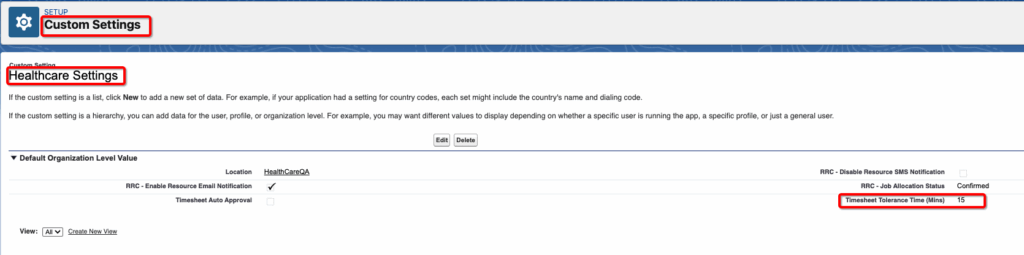
To disable this timesheet exception, remove the value from the Timesheet Tolerance Time(Mins) field.
Overlapping Jobs Exception
The Overlapping Timesheet Exception is automatically included in the system to prevent rostering conflicts. If the system finds that the times on different Jobs or Job Allocations overlap, it triggers this exception. Since this represents a fundamental rostering error, this feature is always active and cannot be turned off. To clear this exception, the scheduler must correct the times of the overlapping Job and Job Allocation records.
Bespoke Timesheet Exceptions
Bespoke Timesheet Exceptions allow you to define custom rules (logic) that are critical to your business. When these rules are triggered by a Job Allocation, the allocation is automatically flagged as an exception for review.
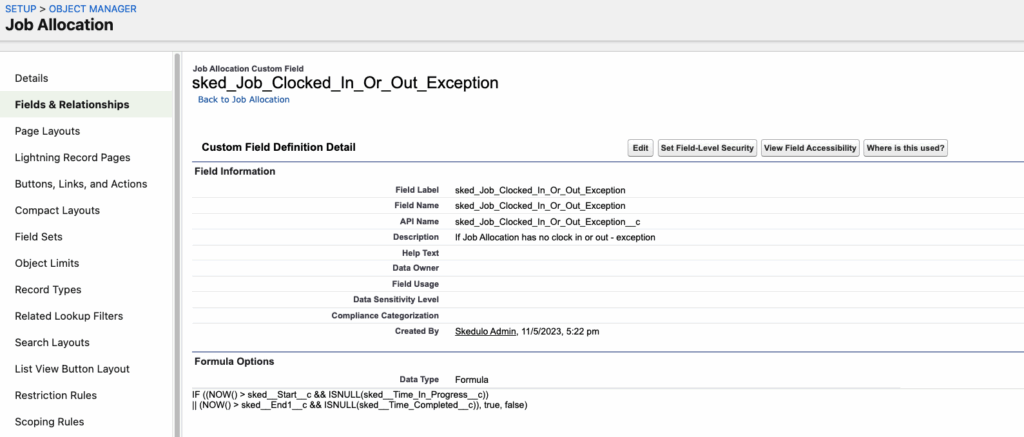
The process of creating a Bespoke Timesheet Exception begins within the Job Allocation Object. An administrator must create a new custom formula field on this object. This field houses the specific logic required to flag an exception and must output as a Checkbox.
When a Job Allocation record meets the logic defined in the formula, the Checkbox field on that record will automatically be marked as ‘True’ (checked), indicating that an exception has occurred.
The example below is of a No Clock in/out Exception, that will flag the related Job Allocation record as a Timesheet Exception if the Job has not been clocked in or clocked out of.
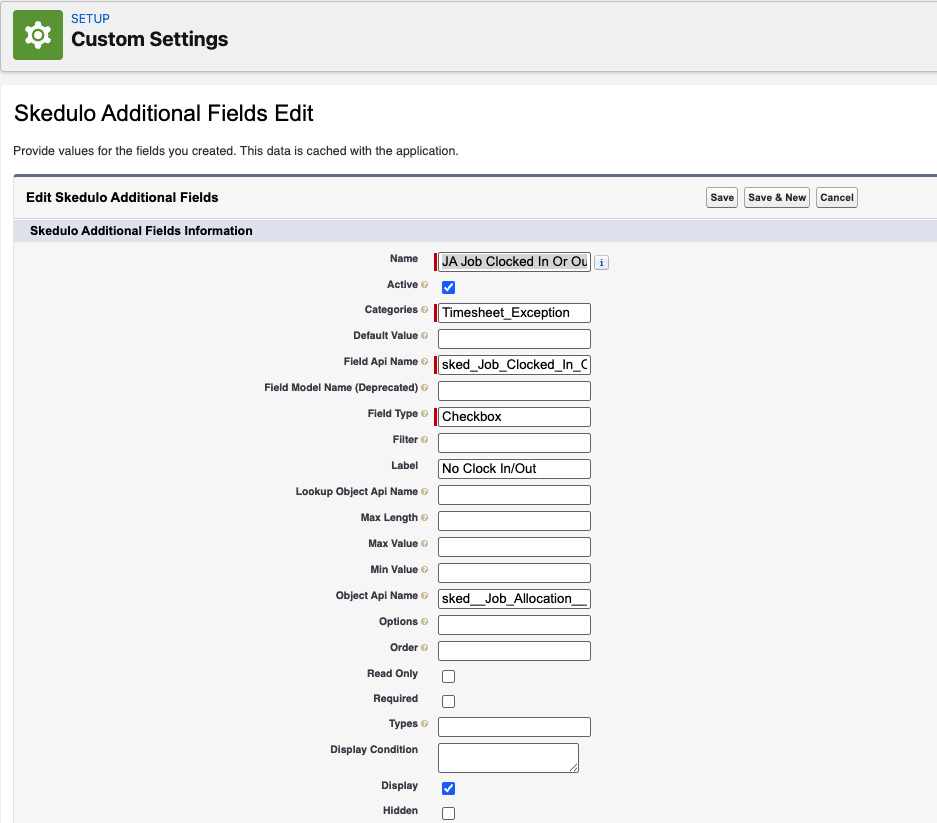
After creating the custom formula field, you must link it to the system by configuring a new record within the Skedulo Additional Fields custom setting. This setting is crucial as it formally registers your custom field as a Timesheet Exception and ensures that the resulting exception flag is correctly displayed in the Timesheet Console.
Managing Timesheet Exceptions
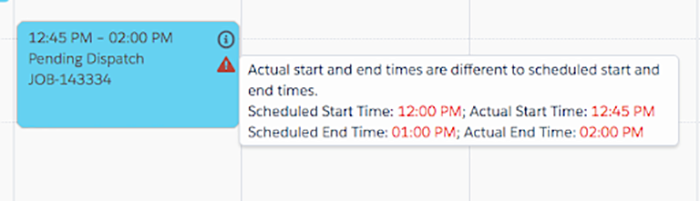
Timesheet records with an exception will be shown with a warning icon.
For Bespoke Timesheet Exceptions, the value from the ‘Label’ field in the Skedulo Additional Fields record will be shown, therefore it’s important that this label provides enough information for the timesheet approver.
Timesheet approvers can view Job Allocations with exceptions only by updating the following filter in the Timesheet Console.
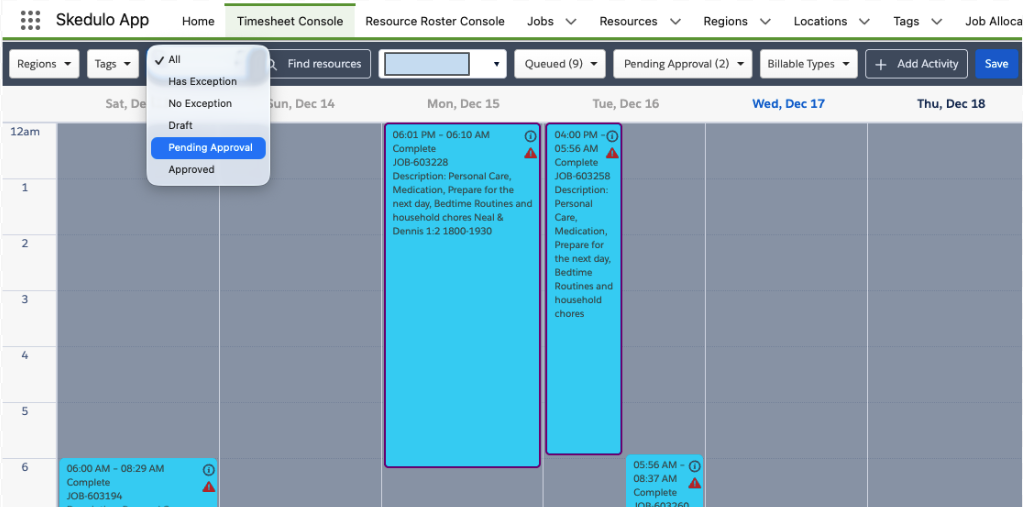
Job Allocations can be drilled into by clicking on them from the Timesheet Console.
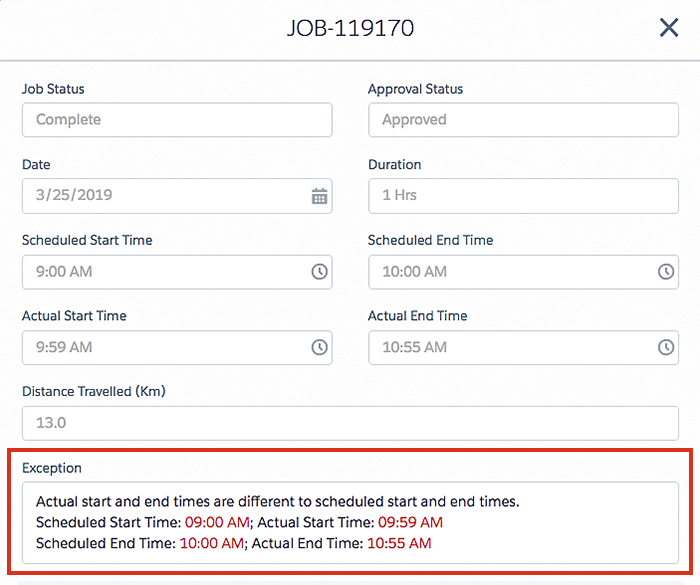
Fig: Job modal, exception details
Timesheet Approval Status
Jobs and Shifts have an Approval Status. If there are no exceptions, the Approval Status is automatically set to Approved once submitted for approval. If there are exceptions, the status will be set to Pending Approval.
Pending Approval Shifts or Shifts can be manually updated to Approved after review and necessary updates.
Jobs or Shifts can be filtered by their Approval Status.
If all Jobs or Shifts are approved (and the auto-approval is enabled), the timesheet will be automatically approved at the end of the timesheet period via a scheduled Job.
Note: This is configured by an administrator.

Fig: Job modal, approval status
Timesheet Hovers
Jobs and Shifts feature a hover function that displays a popup with details about the record, including the allocated resource. These fields are not configurable. If the record has an exception, a warning icon will appear. Hovering over this icon will show the exception details in red highlighted text.

Fig: Job and shift hover information