
This guide details the procedure for submitting leave requests via the Skedulo mobile application. This functionality utilizes a custom form that integrates with SAGE/2C9/People Pay to provide real-time visibility of leave balances.
The primary benefit of this custom form is the ability for resources to view their current leave entitlements before submitting a request, ensuring accuracy and reducing administrative overhead. Approved leave requests are automatically transferred to SAGE/2C9/People Pay for payroll processing.
Submitting a New Leave Request
To create and submit a new request for time off, follow these steps:
- Navigate to the global forms section within the Skedulo mobile application.
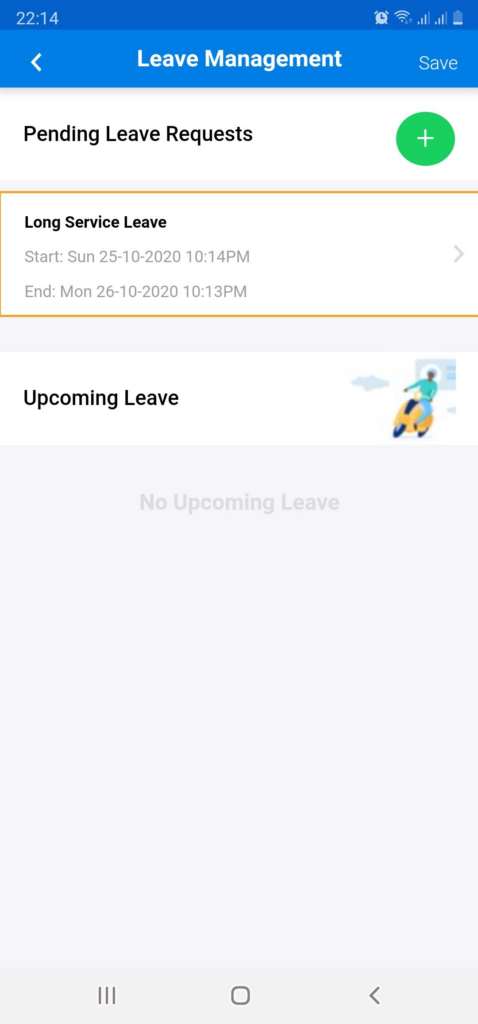
- Open the ‘Leave Management’ mobile form to see all pending an upcoming leave
- Tap the + icon to open a new leave request form.
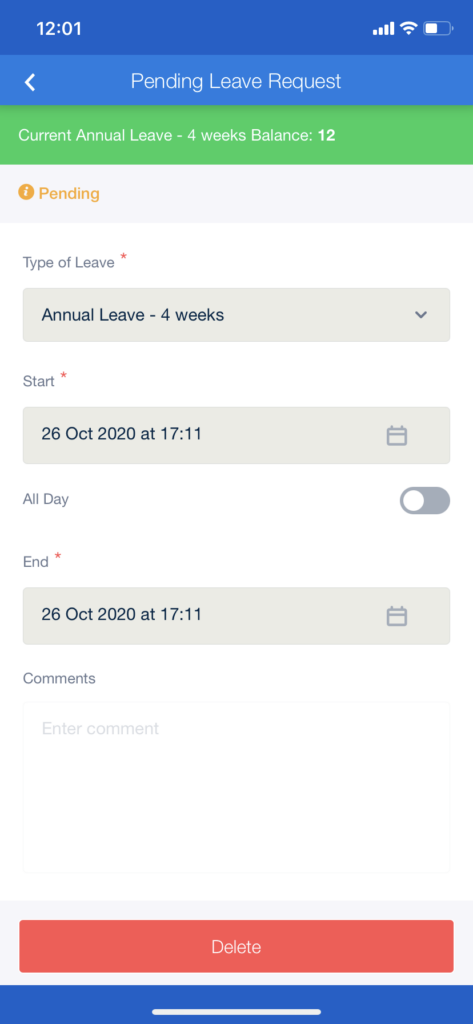
- Complete the following fields:
- Type of Leave: Select the appropriate leave category.
- Start Date/Time: Enter the first day and time of the leave period.
- End Date/Time: Enter the last day and time of the leave period.
- All Day: Check this box if the leave request spans one or more full days.
- Comments: Add any relevant notes or information for the approver.
- Review the entered details for accuracy.
- Tap the Submit button to send the request for approval.