
This section describes the Skedulo and KeyPay/Employment Hero (EH) integration. This connection automatically transfers employee and timesheet data between the two systems, keeping your records consistent and up-to-date.
Integration Points
This integration aims to provide real time costing estimates by integrating employee award management from KeyPay/EH with the resource profile in Skedulo.

Employee to Resource Sync
The integration ensures that employees set up in KeyPay/Employment Hero (EH) are automatically created and maintained as Resources in Skedulo.
Synchronisation: Employee creation, updates, and deactivations in KeyPay/EH are automatically reflected in Skedulo.
Administrator Action: After the resource is created by the sync, the administrator must manually create a Salesforce User and link it to the newly created Skedulo Resource record.
Tags to Qualifications Sync
Tags created in Skedulo will be sync’d to KeyPay/EH qualifications.
Resource Tags to Employee Qualifications Sync
Resource tags will be sync’d to KeyPay/EH employee qualifications. Resource tags can either be assigned from the Resource object within Salesforce or within the Skedulo Web App.
Any resource tag adjustments including applying, adjusting or removing a tag from a resource within Salesforce or the Skedulo Web App will automatically update the employee qualifications within KeyPay/EH.
Region Integration
By default, Skedulo Regions are synchronised to KeyPay/Employment Hero (EH) as Locations.
Skedulo Use: Regions are typically used for operational and scheduling management.
KeyPay/EH Use: Locations in KeyPay/EH primarily function as cost centres for financial tracking.
Note: This synchronisation can be disabled upon request for customers who prefer to manage regions and locations separately.
Get Costings
Once enabled, when you allocate resources to a Job, the system can provide a cost breakdown for up to five resources simultaneously. This breakdown shows the split between normal and overtime costs.
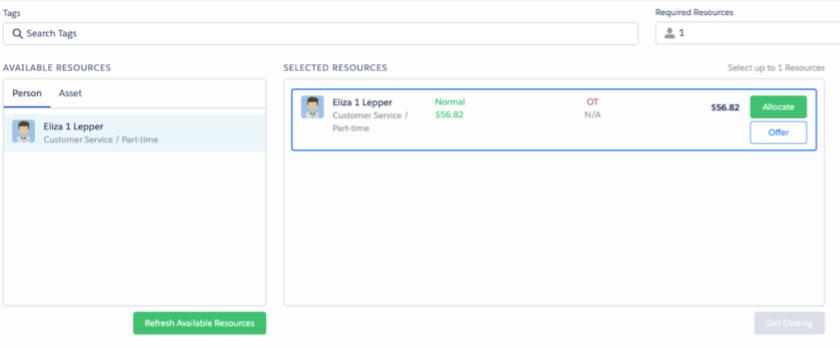
Note: If the resource is in overtime, the award violation that put the resource into overtime is not shown.
The ‘Get Costing’ function must be enabled via the custom setting > skedulo configs > KP_Allow_Shift_Costing set to ‘true’.
When you select ‘Get Costing,’ Skedulo sends the Job details to KeyPay/Employment Hero. KeyPay/Employment Hero then calculates and returns the employee costs for the Job.
To ensure accurate costing, Skedulo submits all Jobs for the selected resources, for the relevant pay period to KeyPay/Employment Hero during this process.
Inactive Sleepover
Inactive sleepover jobs are configured in Skedulo as a normal job with some additional fields populated within the additional fields section.
These fields include:
- Sleepover (Checkbox) – Manually checked by the scheduler when scheduling sleepover jobs
- Sleepover Start Date (Date) – Manually set by the scheduler when scheduling sleepover jobs
- Sleepover End Date (Date) – Manually set by the scheduler when scheduling sleepover jobs
- Sleepover Start Time (Time) – Manually set by the scheduler when scheduling sleepover jobs
- Sleepover End Time (Time) – Manually set by the scheduler when scheduling sleepover jobs
If the inactive period for sleepover is always the same time e.g. 22:00 – 06:00 this can be set by default in the Custom Setting > Sked KeyPay Integration Settings
- Default Sleepover Start e.g 2200
- Default Sleepover End e.g 600
The Sleepover Start and End time can then be removed from the additional fields custom setting and will no longer be shown on the job.
If the sleepover inactive period is not fixed, you can still set your most common inactive times (e.g., 22:00–06:00) as the default values in the custom settings.
Scheduler Action: When scheduling a sleepover that uses those exact defaults (e.g., 22:00–06:00), the scheduler can simply ignore the custom setting fields during the scheduling process.
Sleepover Jobs are typically created to cover the entire duration of the shift. This single Job record includes the active working periods, the inactive sleepover period, and any required pre- and post-shift elements.
See the example below for a breakdown of the Job structure.

When you select the Sleepover checkbox in Skedulo, the system automatically tags the related timesheet with a work type of ‘Sleepover Allowance’ before sending it to KeyPay/EH.
Note: Sleepover Allowance must be configured as a work type in KeyPay/EH, else the timesheet submittal may error.
Work During Sleepover (Sleepover Disturbancies)
Working during sleepover is captured on the Skedulo Plus mobile application via a dedicated Sleepover Disturbance form found inside of a job.

When a Sleepover Disturbance is added by a resource, an activity is created with an activity type of ‘Work during Sleepover’, therefore this activity type must exist in Skedulo.
The ‘Work during Sleepover’ activity type must also be added to the following custom settings > Skedulo Configs:
- KP_Activity_Type_Allow_To_Sync
- KP_Shift_Enabled_Activity_Types
Note: If a Sleepover Disturbance is recorded, Skedulo includes it during the timesheet submission to KeyPay/Employment Hero (EH) using the work type 'Work during Sleepover'. This exact work type must exist in your KeyPay/EH system to ensure the timesheet submission is successful.
Travel Time
By default, Skedulo uses the Job’s Actual or Scheduled start and end times when submitting timesheet data to KeyPay/Employment Hero (EH).
To ensure resources are paid for travel time captured using the ‘Start Travel’ function on the Skedulo Plus mobile application, you must update the following custom settings. This will send the travel start time instead of the Job start time.
To enable the paying of travel time the following settings need to be updated:
- Custom Settings > Sked KeyPay Integration Settings > JA Status for Start Time > Update to ‘En Route’
- Custom Settings > Skedulo Configs > KP_Use_Scheduled_Time_To_Export > false
When enabled if a Job was scheduled from 09:00 to 11:00 and the resource started travel at 08:30 and completed the job at 11:10, Skedulo would send 08:30-11:10 over to KeyPay/EH.
Note: Travel time will also be sent to KeyPay/EH for the first and last jobs of the day.
Kilometers
Kilometers can be sent to KeyPay/EH based on the data that was captured by the resource in the travel and transport form on the Skedulo Plus mobile application. As there are a number of fields within the travel and transport form, there is a setting to determine which fields should be summed together and sent to KeyPay/EH.
The setting can be found within Custom Settings > Skedulo Configs > KP_JA_Summed_Travel_Km_Fields
See the field names and their definition below:
- skedhealthcare__Total_Km_Travelled_with_Client__c – The number of KMs travelled with a client during the shift
- skedhealthcare__Actual_Distance_Traveled_KM__c – The number of KMs travelled to the appointment
- skedhealthcare__TFA_Actual_Travel_Distance__c – The number of KMs travelled from the appointment
Note: The same custom setting configuration allows you to define Job Allocation custom fields that can be used to sum and send kilometer (KM) data to KeyPay/EH.

This feature gives you the flexibility to introduce custom logic—for example, only calculating and sending KMs that are recorded when a resource uses a personal vehicle.
Broken Shifts
KeyPay/EH is capable of automatically identifying and managing broken shifts that contain a single unpaid meal break.
Because of this built-in functionality, Skedulo does not need to specifically flag a shift as “broken” when sending timesheet data.
Although KeyPay/EH handles the detection, you must keep the following points in mind when configuring your related settings in Skedulo:
To allow KeyPay/EH to process shifts correctly, you must first enable job merging in Skedulo.
Set the custom configuration setting Skedulo Configs > KP_Allow_To_Merge_Shifts to true.
Enabling this setting will:
Send that single, merged shift to KeyPay/EH for accurate processing.
Merge back-to-back Jobs (within a defined time threshold) into a single continuous shift.
The threshold is set within Custom Settings > Sked KeyPay Integration Settings > Job Gap Threshold.
Next, it is essential to understand the shift merge logic. The following details explain the conditions under which consecutive Jobs will be combined into a single shift versus when they will be processed as separate shifts.
- If two or more jobs/activities have no work types selected, they will be merged into a single shift
- If two or more jobs/activities have no work types but have a shift condition selected, they will be merged into a single shift
- If two or more jobs/activities have the same work types, they will be merged into a single shift
- If two or more jobs/activities have different work types or one does not have a work type, they will be split into 2 shifts
Note: For customers who have custom logic in place for deriving cost codes, merge shifts should not be enabled.
On Call
If a resource is to be paid for being ‘On Call’ an activity should be created with an activity type of ‘On Call’ for the period in which they are on call for. During the scheduling of the activity, the work type ‘On Call’ should be selected. This is to ensure that once the timesheet data is passed to KeyPay/EH, an On Call allowance can be paid to the resource.
There are some settings to support the on call process. These can be found below:
- Custom Settings > Skedulo Configs > KP_Activity_Type_Allow_To_Sync – ensure that the On Call activity type is set within this setting
- Custom Settings > Skedulo Configs > KP_Shift_Enabled_Activity_Types – ensure that the On Call activity type is set within this setting
Note: The On Call work type must be configured in KeyPay/EH, failing to have this configured will result in timesheet submittal errors.
If a resource is called out whilst being On Call, jobs can be created retrospectively to manage client billing and paying of the resource for these jobs.
Payable Activities
If you wish to send timesheet data over to KeyPay/EH for payable activities, you must configure Skedulo to support this.
- Custom Settings > Skedulo Configs > KP_Activity_Type_Allow_To_Sync – Ensure that the Activity Type is listed in this setting
- Custom Settings > Skedulo Configs > KP_Shift_Enabled_Activity_Types – Ensure that the Activity Type is listed in this setting
- Custom Settings > Skedulo Configs > Payable_Activity_Types – Ensure that the Activity Type is listed in this setting
When an Activity with a type configured in the above settings is scheduled, Skedulo will create a corresponding shift record automatically that will be passed to KeyPay/EH during the timesheet submission process.
Higher Duties
To pay a resource for Higher Duties, simply select the relevant Work Type during the scheduling of the Job in Skedulo. The timesheet will pass this data through to KeyPay/EH for award interpretation.

Note: The list of available Work Types is dictated entirely by your configuration in KeyPay/EH. Skedulo only displays the Work Types that have been successfully synchronised from KeyPay/EH.
Leave
Skedulo Availability Types should align with the KeyPay/EH Work Types that are applicable for Leave. During the installation of the package, Skedulo will sync KeyPay/EH Leave Types to Work Types in Skedulo. This means that when an Unavailability record is created in Skedulo the Availability Type selected must match the KeyPay/EH Work Type.
When a Resource has an approved Unavailability in Skedulo that overlaps with an existing Job(s) a Leave Shift will get created for the duration of the Job(s) it overlaps with. For example, if a Resource has approved leave for the full day (24 hours in the Skedulo world) that overlaps with a Job that starts at 9am and finishes at 5pm, Skedulo will automatically generate a Leave Shift for 8 hours and it’s the Leave Shift that is sent over to KeyPay/EH as part of the timesheet submittal process.
To control which Availability Types are converted into Leave Shifts and subsequently sent to Payroll, use the Payable_Availability_Type custom setting. This setting allows you to specify a list of Availability Types that should create Leave Shifts, effectively excluding any types that should not be processed for payroll. You can find this configuration at: Custom Setting > Skedulo Configs > Payable_Availability_Type.
Public Holidays
Holidays are mastered in Skedulo and are synced upon create/update/delete.
Paid Meal Breaks
Paid Meal Breaks are configured as Payable Activities and will be sent to KeyPay/EH as a shift. Paid Meal Break can also be selected during the creation of an Activity.

Permission Sets
There are two permission sets that are preconfigured as part of the KeyPay/EH package.
KeyPay Scheduler Permission Set
This permission set is designed for Schedulers and grants them full access to:
- The timesheet console in Salesforce.
- Synchronisation functions between Salesforce and KeyPay.
Action: Apply the KeyPay Scheduler Permission Set to the Salesforce user record of any staff member categorized as a ‘Scheduler.’
KeyPay Resource Permission Set
This permission set is required for Resources to submit timesheets using the mobile application and to ensure certain actions on the mobile are reflected in underpinning data.
It does not provide access to the timesheet console, timesheet records, or synchronisation functions within Salesforce.
Action: Apply the KeyPay Resource Permission Set to the Salesforce user record of any staff member categorised as a ‘Resource.’
Timesheets
The Timesheet Console is the centralised workspace designed for managers to efficiently handle all timesheet activities. This includes reviewing, resolving Timesheet Exceptions, and approving final timesheets.
The lifecycle of a timesheet record in Skedulo involves three primary steps.
- Submitted – Where a resource, a manager or automation submits the timesheet. This step creates the timesheet and unpinning data
- Approved – Where a manager or automation approves the timesheet following resolution of any exceptions
- Submitted to Payroll – Where a manager or automation sends the Skedulo timesheet data over to KeyPay/EH. The Submit to Payroll option is under the ‘Shifts’ section in the Timesheet Console
Note: Timesheets submitted to KeyPay/EH cannot be resent. Therefore if there are any data issues or missing shifts, they will need to be resolved directly in KeyPay/EH.