
This section describes the Skedulo and Easy Employer (EE) integration. This connection automatically transfers employee and timesheet data between the two systems, keeping your records consistent and up-to-date.
Integration Points
This integration aims to provide real time costing estimates by integrating employee award management from EE with the resource profile in Skedulo.
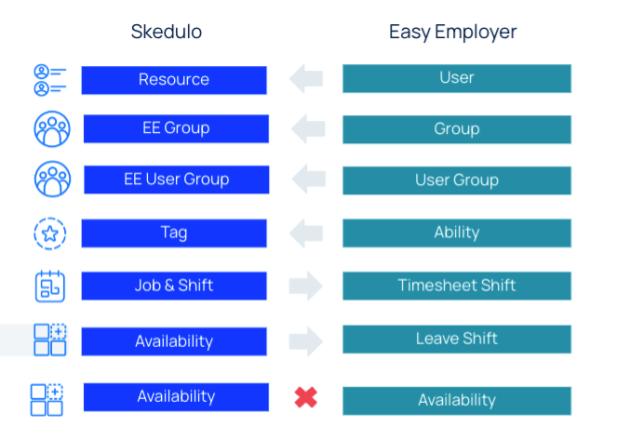
User to Resource Sync
The integration ensures that users set up in EE are automatically created and maintained as Resources in Skedulo.
Synchronisation: User creation, updates, and deactivations in EE are automatically reflected in Skedulo.
Note: The user profile in EE must have a 'Role' before it will be synced to Skedulo. Once synced, the following fields on the resource record must manually be entered.
- User – Create or link to an existing Salesforce user record
- Primary Region
- Category
- Employment Type
- Working Hour Type – This is normally set to ‘Availability’
During the synchronisation the resource record in Skedulo will be linked to one or to many EE Groups. EE Groups are defined as a means to group employees with similar pay conditions based on their relevant industry award.
Ability to Tags Sync
If you manage user abilities in EE:
This sync is one-way (EE → Skedulo). If you manage abilities directly in Skedulo, those changes will not sync back to EE.
Abilities (skills, certifications, etc.) assigned to a user in EE are automatically sync to the resource tags in Skedulo.
If your organisation chooses to manage skills and certifications directly within Skedulo, you can master tags and resource tags in Skedulo for all scheduling needs. This allows you to define and maintain your resource requirements and abilities directly within the Skedulo platform.
Region Integration
Region Integration is not supported by the Skedulo/EE package. Regions are maintain directly in Skedulo.
Get Costings
Once enabled, when you allocate resources to a Job, the system can provide a cost breakdown for up to five resources simultaneously. This breakdown shows the split between normal and overtime costs.
The ‘Get Costing’ function must be enabled via the custom setting > skedulo configs > allow get costing.
The ‘Display Role’ setting should also be enabled via the custom setting > skedulo configs > display role
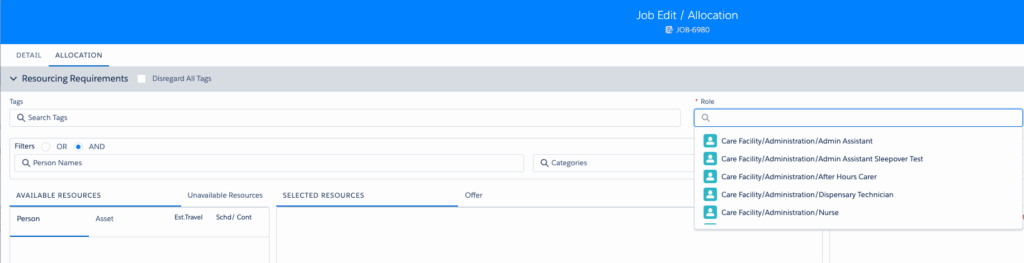
Roles are required when scheduling Jobs. The Job Allocation modal will then search for ‘Available’ resources who have a matching role.
Award Violations
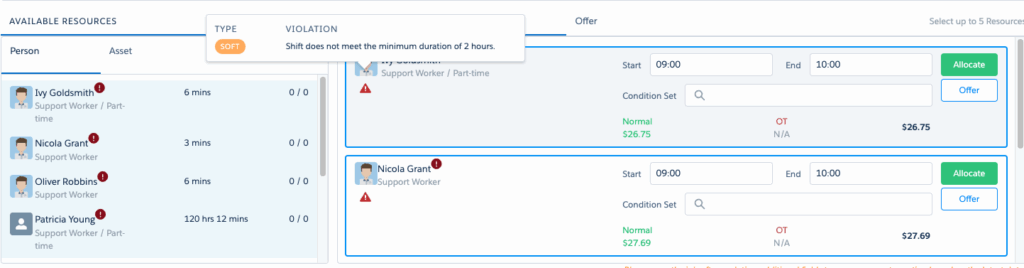
Award Violations are also retrieved via the ‘Get Costing’ function, EE will return Award Violations to Skedulo.
By default Award Violations are assumed as ‘Soft’ which means a resource can still be allocated to a job.
A list of OOTB EE Violations can be found here EE Violations.
Note: If you would like to configure 'hard' violations, update the custom setting > skedulo configs > EE_Hard_Violation_Types. If this setting is not available, reach out to your CSM.Inactive Sleepover
Inactive sleepover jobs are configured in Skedulo as a normal job with some additional fields populated
Resources must have the following roles against their user profile in EE
- Pre/Post Sleepover
- Sleepover
- Sleepover Disturbance
The awards in EE must be configured with a ‘break type’ of Sleepover with an export code of SLP
In Skedulo the following should be configured
- Expose the Sleepover checkbox and Sleepover Start to the Job modal via the Skedulo Additional Fields custom setting
- Ensure there is a ‘Break Type’ of ‘Sleepover’ on the Shifts object
- Go to custom settings > Sked EE Shift Break Type Mapping and ensure there is a record for ‘Sleepover’ with a ‘break code’ of ‘SLP’
When scheduling Jobs, the pre and post sleepover should be created as separate jobs with a role of ‘Pre/Post Sleepover’ to ensure EE can interpreted the data correctly.
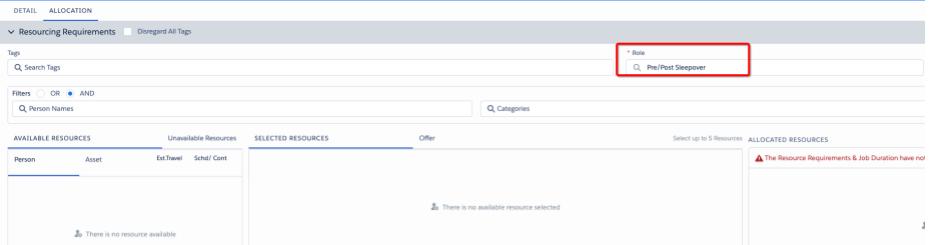
For the inactive part of the sleepover job, a separate job should be scheduled ensuring the following fields are set
- Job start time is set to the start time that the inactive sleepover commences
- Sleepover checkbox checked
- Sleepover start date and time fields are populated
- The sleepover ‘role’ has been selected
- The sleepover disturbance ‘sleepover disturbance role’ has been selected

Sleepover Disturbances
Sleepover disturbances are captured on the Skedulo Plus mobile application via a dedicated Sleepover Disturbance form found inside of a job.
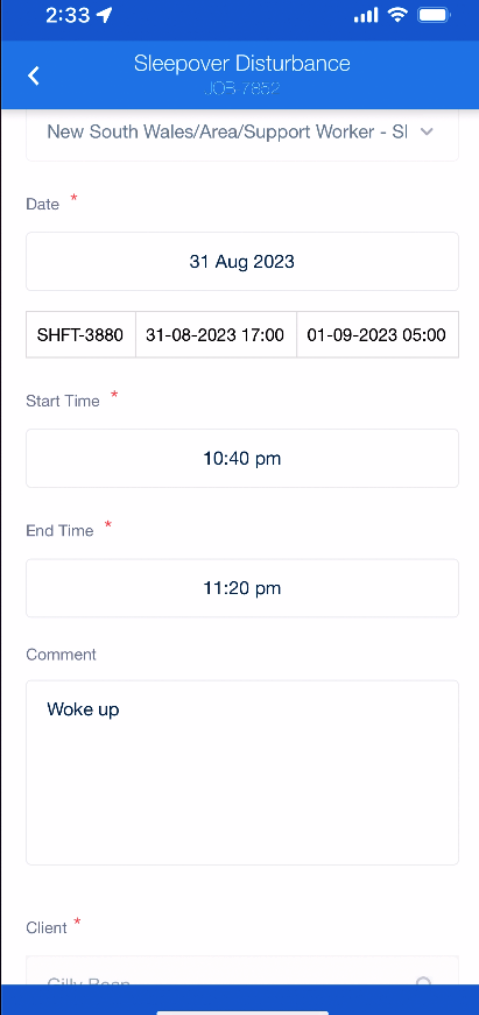
Multiple sleepover disturbances can be logged against a job.
When the sleepover disturbance syncs to the main system, a separate, corresponding shift is automatically created for the resource who logged it. This shift is assigned to the correct EE group so the system can process the sleepover disturbance accurately.
Travel Time
If your organisation compensates resources for the time spent traveling between different jobs, you must configure a few specific system settings. From an EE perspective, this travel duration is recorded and treated simply as a standard timesheet punch time entry, just like any other work period.
Within the custom settings > Sked Easyemployer Integration Settings > JA Status for Start Time field, update the value to ‘En Route’.
Within the custom settings > Skedulo Configs > EE_Use_Scheduled_Time_To_Export set this value to ‘false’.
Note: With the correct settings configured, Skedulo will send the actual time recorded by the resource. The Start Time of the job will be based on when the resource taps 'Start Travel' on their mobile device and the End Time will be when the resource taps 'Completed'.

Important: If you wish to send travel time to EE, then Skedulo can only be configured to send actual times and not scheduled times.
Kilometres
Kilometres are recorded by the user in the following locations:
- The Travel Transport form on the mobile application.
- When completing jobs via the Scheduling Console.
Since KMs can be entered into several distinct fields (e.g., Travel to Appointment, Travel with Participant, and Travel from Appointment), Skedulo sums these individual values into a single total kilometre figure.
Configuration: To specify which fields should be included in this total sum, configure the following setting:
Enter the names of the fields that must be summed for the total kilometre value.
Custom Settings → Skedulo Configs → JA_Summed_Travel_Km_Fields
The final kilometre (KM) value recorded on a Job Allocation is automatically copied to the associated Shift record.
If a single Shift contains multiple Job Allocations, the KM value from each individual Job Allocation is summed together and the total is applied to the Shift record.
Note: If KMs are entered after the Job is already marked as 'Completed' the Shift record is NOT updated with those KMs that were added.Broken Shifts
EE requires Skedulo to flag shifts that meet the criteria for a Broken Shift. This criteria is defined by the gap between shifts.
To configure this Custom Settings > Sked Easyemployer Integration Settings > Broken Shift Gap, Enter the minimum number of minutes that must occur between two shifts for them to be classified as a Broken Shift.
A scheduled overnight batch runs to identify jobs meeting the broken shift criteria. When a shift qualifies, the related ‘Shift’ broken shift field is automatically set to ‘true’. This shift is then sent to EE with the timesheet data for proper interpretation.
Note: A broken shift comes into place when there is a gap of more than <value defined in custom setting> between scheduled jobs/activities which is not filled by an unpaid break (eg: unpaid meal break).
On Call
If a resource is to be paid for being ‘On Call’ they will need to have a On-Call role added to their user profile in EE.
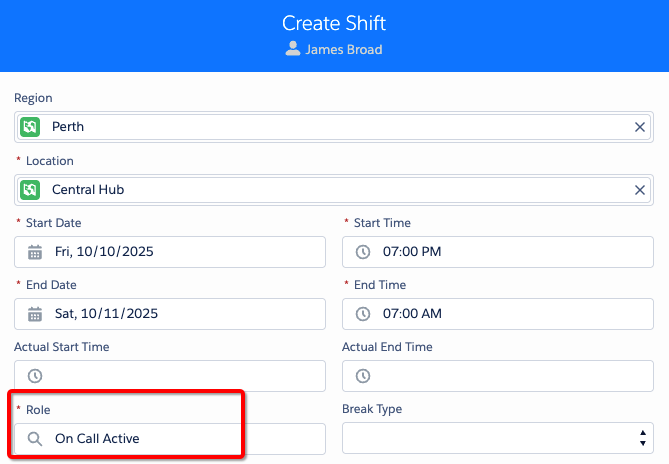
A shift can be created directly for the resource selecting the relevant On-Call role for that shift.
Payable Activities
Paid Activities are NOT supported by the Skedulo EE Package. Activities do not create the underlying shift that is required to be sent to EE.
As an alternative to using paid activities, customers can create a Shift directly on a resource’s schedule. During this creation process, a ‘role’ can be selected for the shift.
This directly created Shift will be included and sent to EE as part of the standard timesheet submittal process.
Higher Duties
Higher Duties are paid according to the Role that is selected on the Job. In order for a Resource to be paid for a Role, they need to have this Role as active on the ee groups (related list)
EE use this role to determine the pay rate for the shift when sent as part of the timesheets
Leave
Configuration
For every leave type to be sent to EE, leave type mapping must be configured. This is configured in custom settings > Sked EE Code Mapping. A record must be created for each leave type that is to be sent to EE.
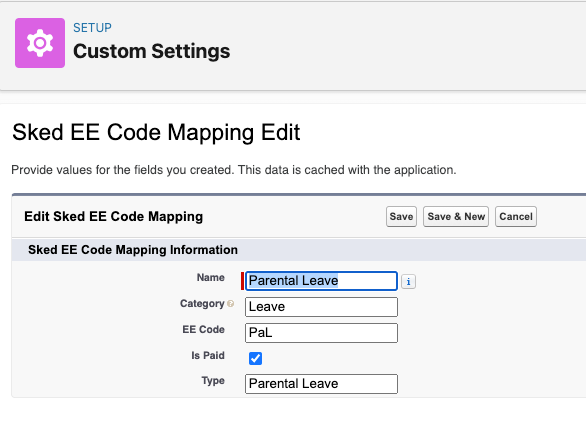
| Name | Name of the Leave |
| Category | Set to ‘Leave’ |
| EE Code | The payroll code for the leave type in EE |
| Is Paid | Checked |
| Type | Must match the Skedulo Availability Type |
The following custom settings should also be configured:
| Custom Settings > Sked Easyemployer Integration Settings | Create Leave Shift for Job should be checked. This will create a Leave Shift for the duration of the scheduled Jobs |
| Custom Settings > Sked Easyemployer Integration Settings | Unallocate Shift should be checked. This will deallocate the Shift from the Resource when leave is approved |
| Custom Settings > Sked Easyemployer Integration Settings | Unallocate Job should be checked. This will deallocate the Shift from the Resource whent he leave is approved |
| Custom Settings > Object_Types_In_Resource_Removal | Remove Job Allocations from this settings. Deallocations is managed directly by the Skedulo EE package |
| Custom Settings > Payable_Availability_Types | Add all Payable leave types to this setting |
With the above settings enabled, when an Availability is approved in Skedulo any overlapping Jobs will be deallocated and a leave shift will be created for the duration of the overlapping Jobs. In summary if Availability for all day (24 hours) is approved in Skedulo and there are 8 hours of overlapping Jobs, a leave shift will get created for 8 hours.
Leave shifts are sent to EE via the Timesheet submittal process.
Holidays
Public Holidays are not supported by the Skedulo/EE package. Holidays are maintained directly in Skedulo.
Meal Breaks
Unpaid meal breaks can be sent from Skedulo to EE via the Timesheet submittal process.
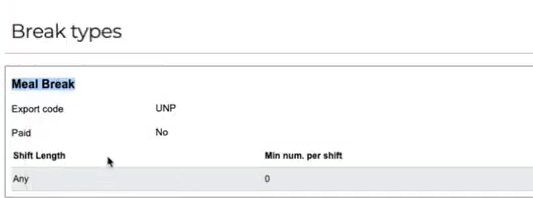
To configure unpaid meal breaks firstly ensure that the user in EE is associated to an Award that has a break type of unpaid meal break and make note of the export code, which is normally ‘UNP’.
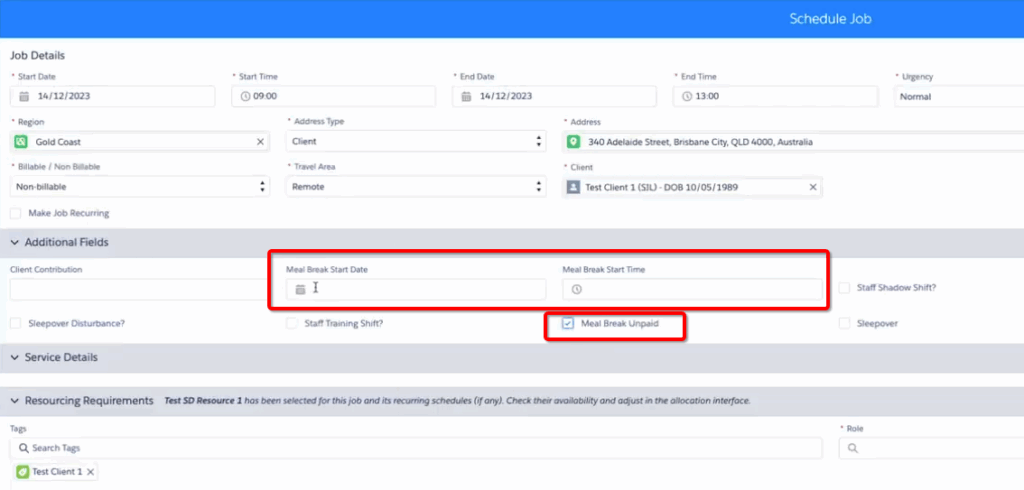
Ensure the Unpaid Meal Break checkbox and Meal Break Start fields have been configured to appear in the Additional Fields section of the Job modal, this is done via the Custom Setting > Skedulo Additional Fields setting.
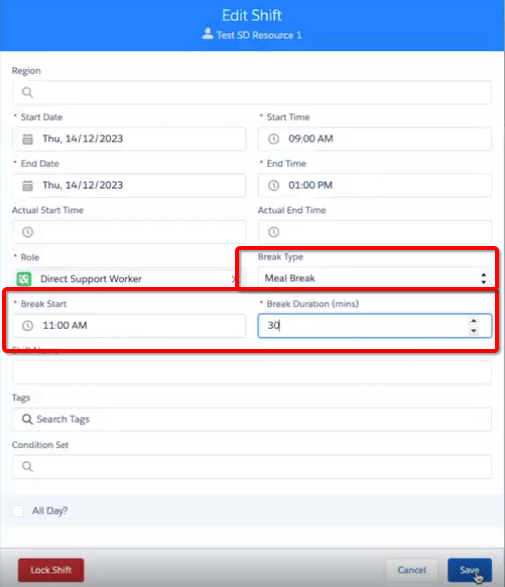
Within the Shift object ensure there is a ‘Meal Break’ value within the Break Type field.
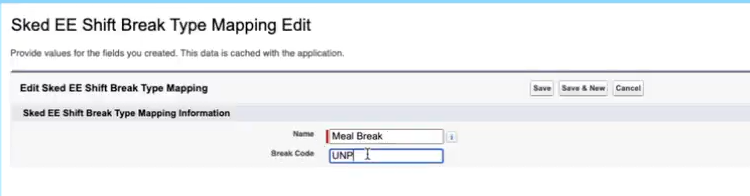
Go to Custom Settings > Sked EE Shift Break Settings and create a Meal Break setting mapping to the UNP break code.
Unpaid Meal breaks are then set against the Job itself.
Once the Job is saved the underpinning shift will need to be manually updated to have some of the fields manually populated as demonstrated below.
The shift along with the unpaid meal break will be sent to EE when the timesheet is submitted to EE.
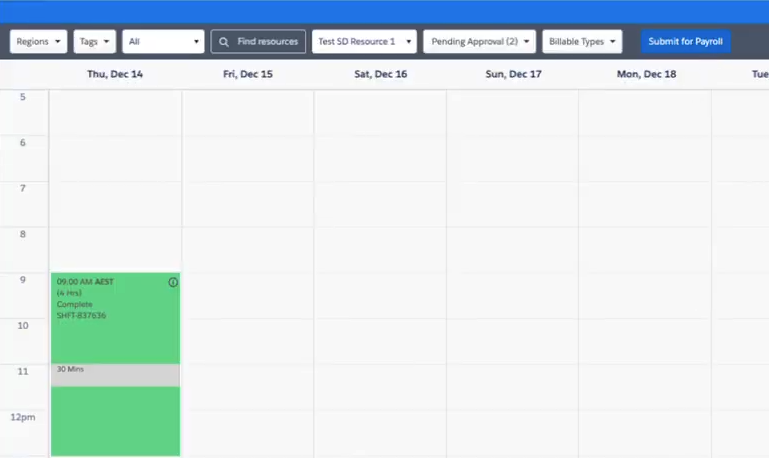
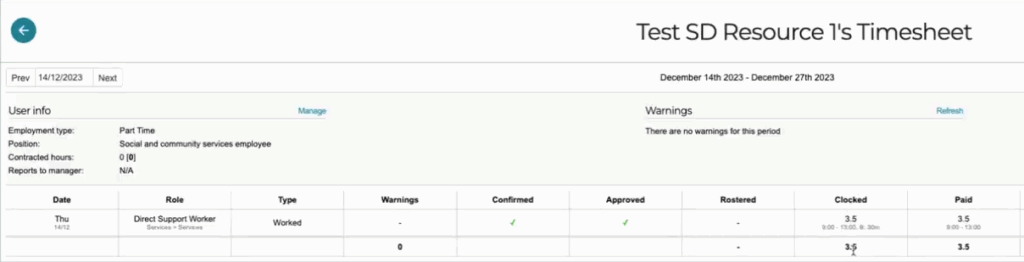
The image below shows how EE has interpreted a 4 hour shift with a 30 minute unpaid meal break.
Permission Sets
There are two permission sets that are preconfigured as part of the EE package.
EE Scheduler Permission Set
This permission set is designed for Schedulers and grants them full access to:
- The timesheet console in Salesforce
- Synchronisation functions between Salesforce and EE
- Access to EE objects and fields (Group and Resource Groups)
Action: Apply the EE Scheduler Permission Set to the Salesforce user record of any staff member categorised as a ‘Scheduler.’
EE Resource Permission Set
This permission set is required for Resources to submit timesheets using the mobile application and to ensure certain actions on the mobile are reflected in underpinning data.
It does not provide access to the timesheet console, timesheet records, or synchronisation functions within Salesforce.
Action: Apply the EE Resource Permission Set to the Salesforce user record of any staff member categorised as a ‘Resource.’
Timesheets
The Timesheet Console is the centralised workspace designed for managers to efficiently handle all timesheet activities. This includes reviewing, resolving Timesheet Exceptions, and approving final timesheets.
The lifecycle of a timesheet record in Skedulo involves three primary steps.
- Submitted – Where a resource, a manager or automation submits the timesheet. This step creates the timesheet and unpinning data
- Approved – Where a manager or automation approves the timesheet following resolution of any exceptions
- Submitted to Payroll – Where a manager or automation sends the Skedulo timesheet data over to EE The Submit to Payroll option is under the ‘Shifts’ section in the Timesheet Console
Note: Timesheets submitted to EE cannot be resent. Therefore if there are any data issues or missing shifts, they will need to be resolved directly in EE.