
Replicate Base Roster
Following the creation or updating of a Base Roster, the scheduled work and activities for all resources is then able to be validated and/or replicated from the Base Roster to a new Roster Period.
Replication is actioned by clicking the Replicate Roster button on the console.

Fig: Replicate roster button
Replicate Roster Modal
When clicked, the Replicate Roster modal is displayed.
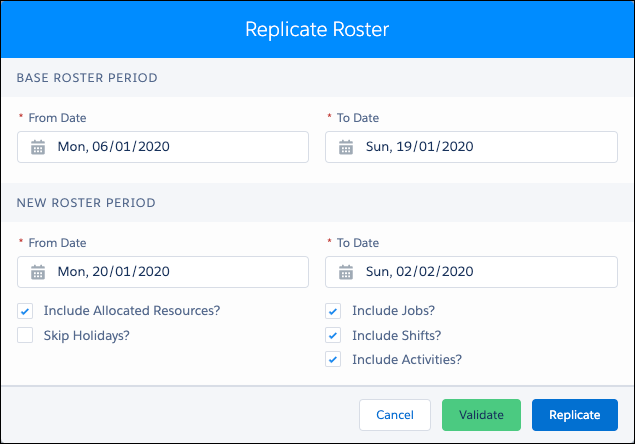
Fig: Replicate roster modal
The following options are available:
- Base Roster Period
- The From Date and To Date (inclusive) will be used as the source jobs to be replicated.
- New Roster Period
- The From Date and To Date (inclusive) will be used as the dates to which the Base Roster Period will be replicated.
- Include Allocated Resources?
- If selected, resources allocated to a job in the Base Roster Period will be allocated to the new replicated job in the New Roster Period (Default).
- If not selected, no allocated resources will be allocated to new replicated jobs in the New Roster Period.
- Skip Holidays?
- If selected, no jobs will be replicated to dates that have been configured as Holidays in the Skedulo package.
- If not selected, jobs will be replicated to dates configured as Holidays (Default).
- Include Jobs?
- If selected, all Base Roster jobs will be included in validation or replication (Default).
- If not selected, no Base Roster jobs are included invalidation or replication.
- Include Shifts?
- If selected, all Base Roster shifts will be included in validation or replication (Default).
- If not selected, no Base Roster shifts are included invalidation or replication.
- Include Activities?
- If selected, all Base Roster activities will be included in validation or replication (Default).
- If not selected, no Base Roster activities are included.
The actions available are…
- Cancel
- Select to cancel the replication.
- Validate
- Select to trigger a background process to identify any conflicts which new replicated jobs would have in the new Roster period.
- A notification email of the validation results will be distributed when validation has finished processing.
- Replicate
- Select to trigger background process to validate and replicate jobs in the Base Roster Period into New Roster Period. A notification email of the replication results is distributed when replication has finished processing.
Important
- Selecting Validate does not create jobs in the New Roster Period.
- Selecting Replicate will create jobs in the New Roster Period
Custom Settings
The following custom settings, configurable in Salesforce, allow additional fields to be included and certain fields to be excluded when replicating work.
| Setting | Description |
|---|---|
| Job_Replication_Extra_Fields | Additional job fields included in the roster replication |
| Job_Replication_Excluded_Fields | Job fields to exclude from the roster replication |
Note
Custom fields are not able to be included or excluded in roster replication.
Replicate Roster Validations
The following possible outcomes may be listed in the email Notification depending on the outcome from the validation and/or replication processing.
Table: Conflict notifications
| Conflict name | Description |
|---|---|
| New Job Conflicts with Existing Job | The new scheduled job is conflicting with an existing job to which the resource has been allocated. <A list of existing work to which the resource is already allocated> |
| New Job Conflicts with Existing Shift | The new scheduled job is conflicting with an existing shift to which the resource has been allocated. <A list of existing work to which the resource is already allocated> |
| New Job Conflicts with Existing Activity | The new scheduled job is conflicting with an existing activity to which the resource has been allocated. <A list of existing work to which the resource is already allocated> |
| New Shift Conflicts with Existing Job | The new scheduled shift is conflicting with an existing job to which the resource has been allocated. <A list of existing work to which the resource is already allocated> |
| New Shift Conflicts with Existing Shift | The new scheduled shift is conflicting with an existing shift to which the resource has been allocated. <A list of existing work to which the resource is already allocated> |
| New Shift Conflicts with Existing Activity | The new scheduled shift is conflicting with an existing activity to which the resource has been allocated. <A list of existing work to which the resource is already allocated> |
| New Activity Conflicts with Existing Job | The new scheduled activity is conflicting with an existing job to which the resource has been allocated. <Existing job to which the resource is already allocated> |
| New Activity Conflicts with Existing Shift | The new scheduled activity is conflicting with an existing shift to which the resource has been allocated. <Existing shift to which the resource is already allocated> |
| New Activity Conflicts with Existing Activity | The new scheduled activity is conflicting with an existing activity to which the resource has been allocated. <Existing activity to which the resource is already allocated> |
| SA Line Item Dates Exceeded | New scheduled work date is not within the service line item date range. |
| Exceeds Service Agreement Balance Remaining | The total cost of newly replicated work plus any scheduled work not yet completed or cancelled does not exceed the balance remaining on the client’s service agreement linked to the work. |
| Exceeds Service Line Item Balance Remaining | Total cost of newly replicated work plus any scheduled work not yet completed or cancelled does not exceed the balance remaining on a client’s service line item linked to the work. |
| Resource Unavailable | The allocated resource is unavailable for the part or all of the new scheduled work. |
| Resource Does Not Have Required Skills | The allocated resource does not have all the required skills for the new scheduled work. Missing skills are: <List of missing job skills> |
| Resource Scheduled Hours Less than Contracted Hours | Resource’s scheduled hours for the period are less than resource’s contracted hours for the period: <Resource Name with link to resource record> |
| Resource Scheduled Hours Exceeds 76 Hours | Resource scheduled hours are greater than 76 hours: <Resource Name with link to resource record> |
| Resource Unavailable for New Activity | The allocated resource is unavailable for the part or all of the new activity. |
Replicate Roster Notification
Both the ‘Validate’ and ‘Replicate’ option generates an email that contains the outcomes of the validation checks.
A Public Group needs to be created called Roster_Replication_Notification
This replication email will be sent to members in the Roster_Replication_Notification_Group
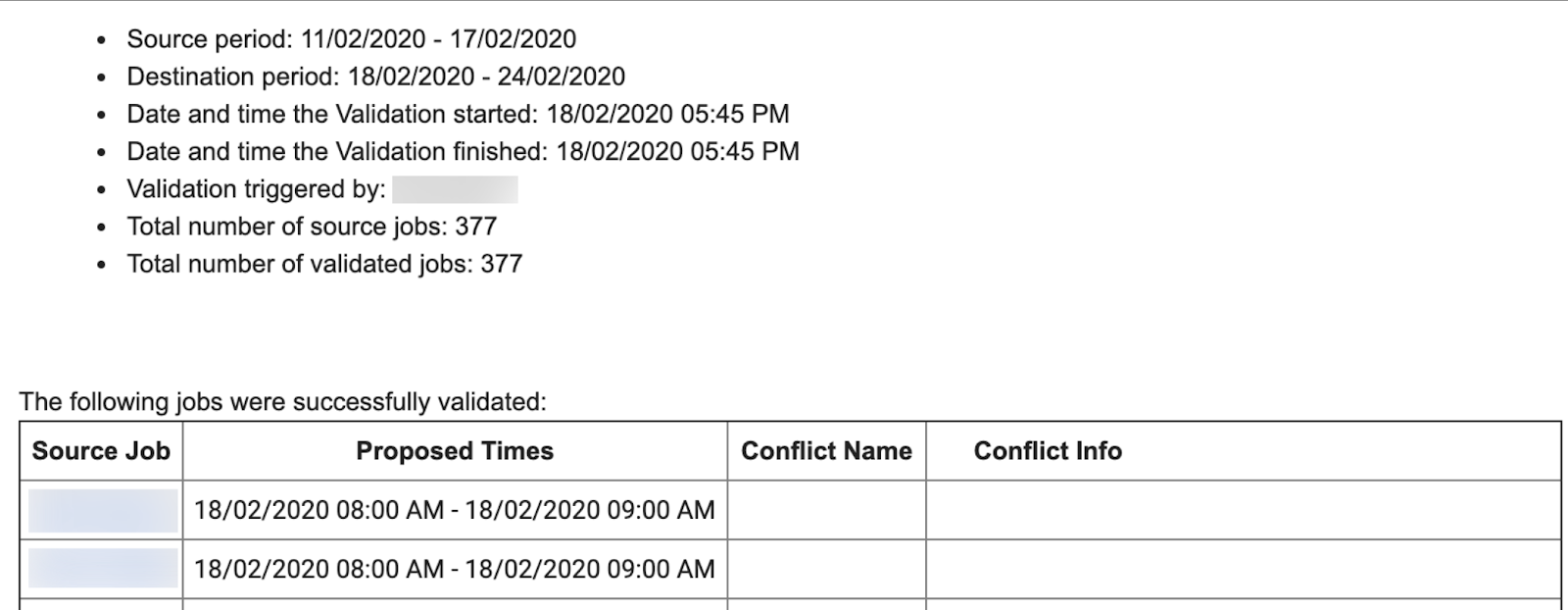
Fig: Validation email example
Replicate Date Data in Additional Fields
Additional Fields section might contain the date data type such as Sleepover Start Date, Meal Break Start Date. When replicating jobs into a new period, these date data fields will be automatically and accurately set based on the new job dates.
- Example 1:
- Base template job:
- Job date: 01/01/2025
- Sleepover start date (or any other date additional fields): 01/01/2025
- Replicated job:
- Job date: 15/02/2025
- Sleepover start date (or any other date additional fields): 15/02/2025
- Base template job:
- Example 2:
- Base template job:
- Job date: 01/01/2025
- Sleepover start date (or any other date additional fields): 02/01/2025
- Replicated job:
- Job date: 15/02/2025
- Sleepover start date (or any other date additional fields): 16/02/2025
- Base template job:
To determine which additional fields will follow the behaviour as above:
- Navigate to Setup > Custom Settings > Skedulo Configs > new setting Job_Replication_Additional_Date_Fields:
- Use this setting to configure one or many additional fields of Job Object with Date or DateTime data type
- For example: “skedhealthcare__Registration_Date__c; skedhealthcare__Meal_break_start__c; skedhealthcare__Sleepover_start_2__c”
- Default value: blank